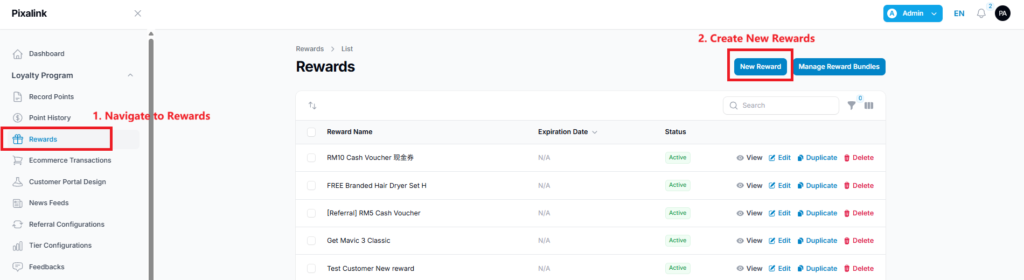
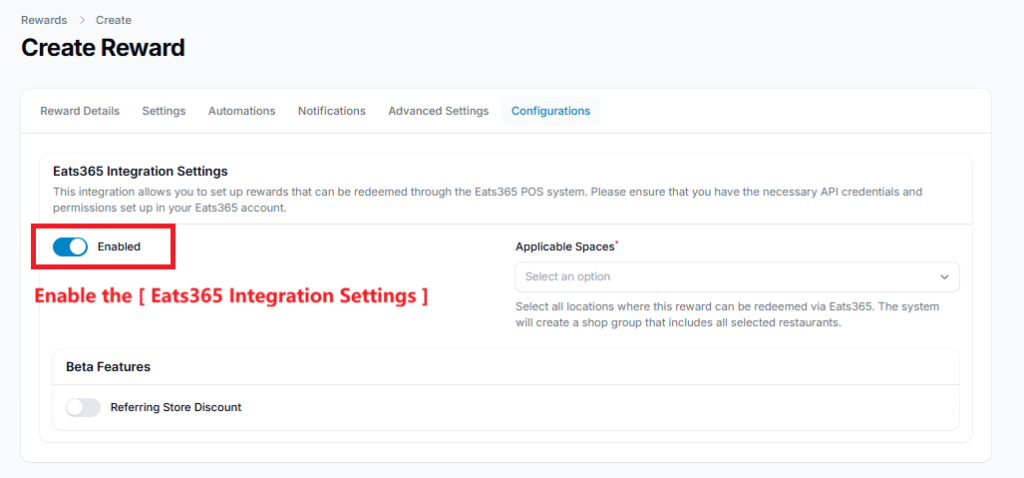
Configure Integration: ○ Go to the Configurations tab. ○ Toggle Eats365 Integration Settings to Enabled.
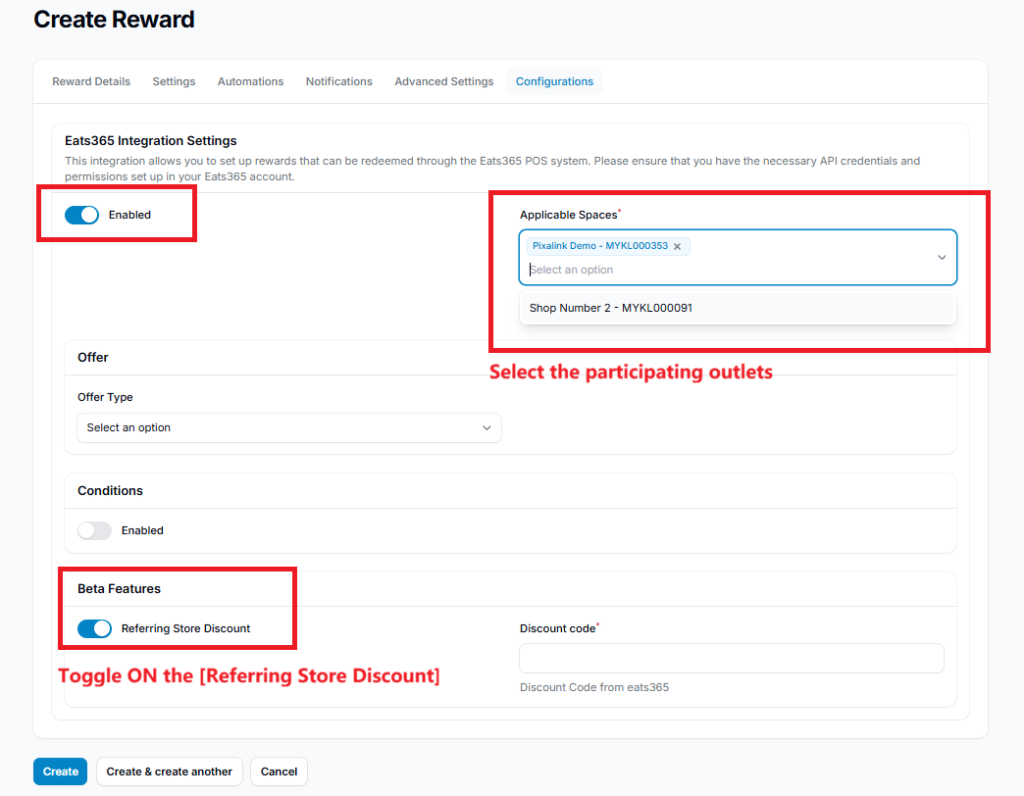
○ Applicable Spaces: Select your restaurant/outlet. ○ Referring Store Discount must be Toggle ON.
Discount Code: Enter a unique code (e.g., V0001). Copy this code for the next step.
All the ‘Discount Codes’ must be unique and follow consistent patterns for ease of configuration,
such as :
Tiering vouchers starts with : TXXXX
Marketplace vouchers starts with : VXXXX
Referral vouchers starts with : CMPGXXXX
Step 2: Set up Merchant Discount in Eats365
Log in to the Eats365 Merchant Portal.
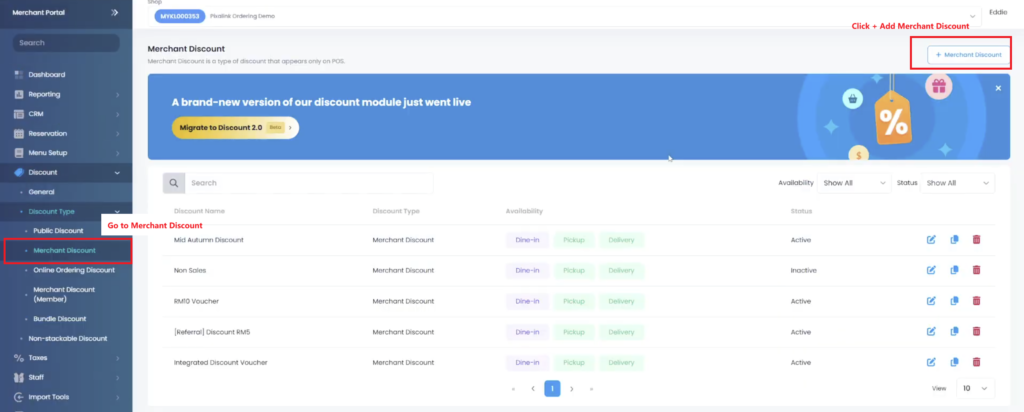
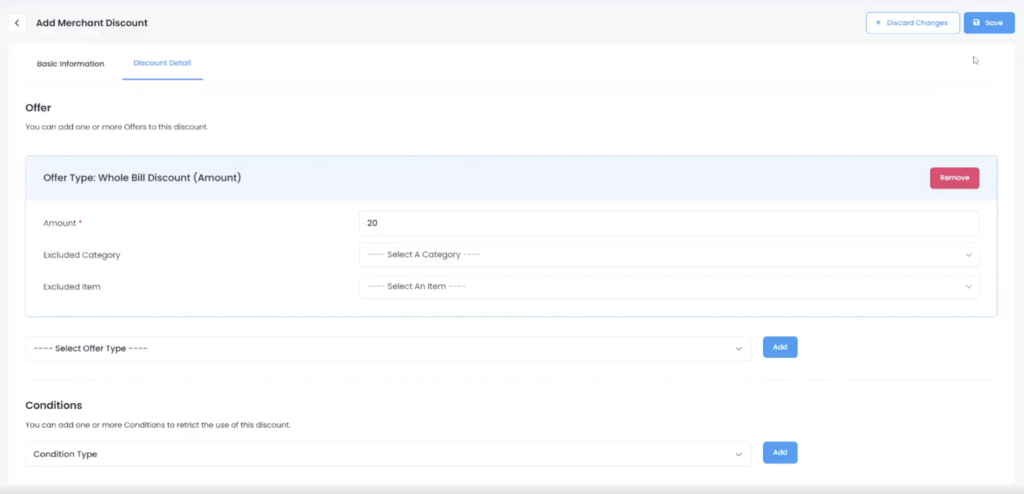
On the Left Panel, Navigate to Discount > Discount Type ( Expand it down ) > Merchant Discount.
Click + Add Merchant Discount
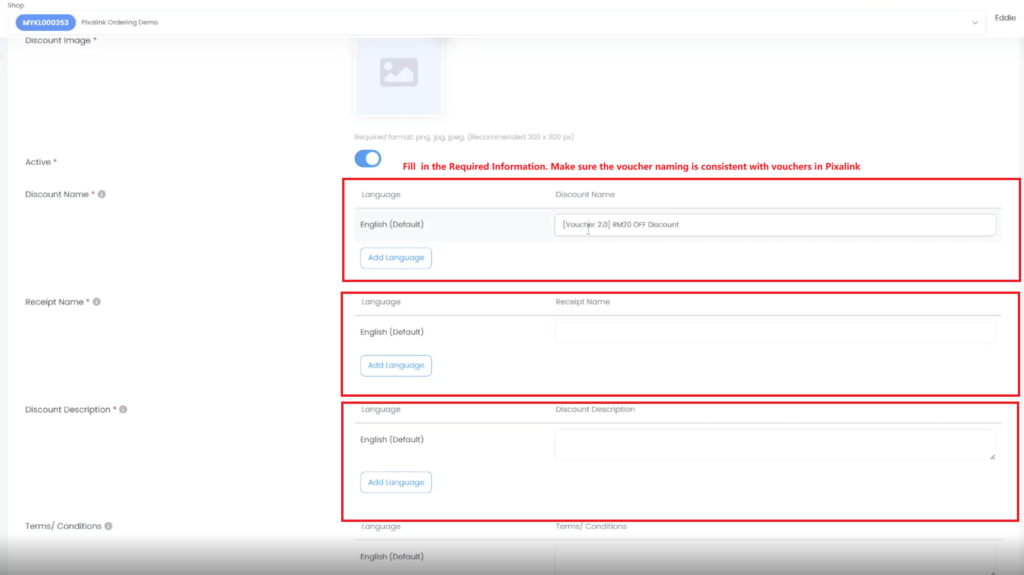
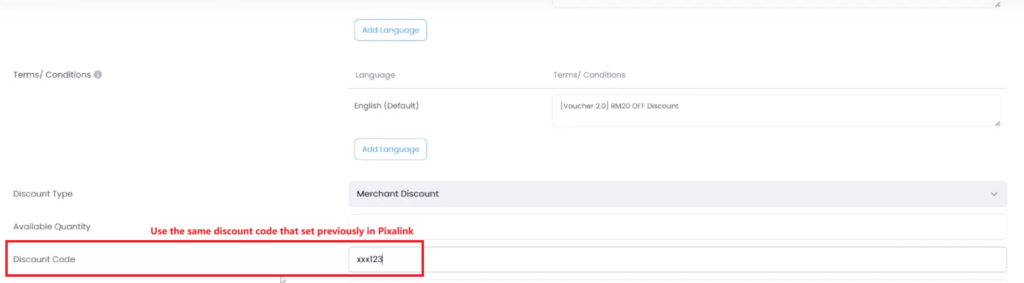
Fill the the Required Information: ○ Discount Name: Match the Pixalink name for consistency. ○ Discount Code: Paste the exact code from Pixalink (e.g., xxx123). ○ Active: Ensure the toggle is switched ON.
The voucher code in Pixalink must match the one in Eats365.
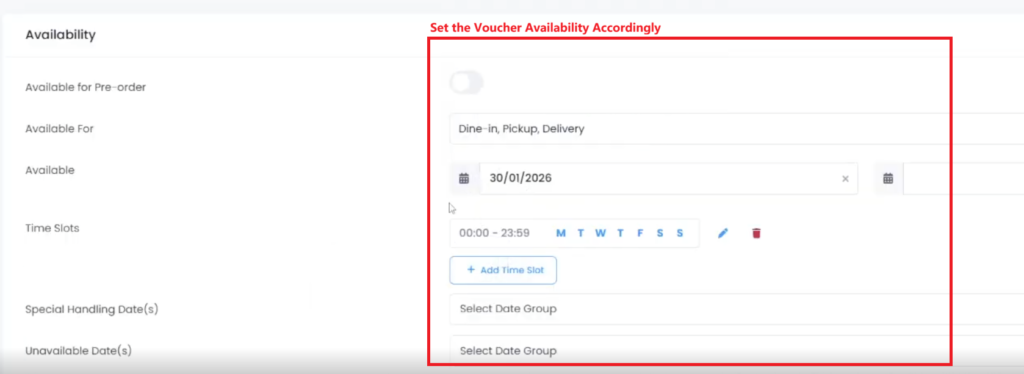
Availability: ○ Select the applicable Shop Group. ○ Set the Start/End Date and Time Slots.
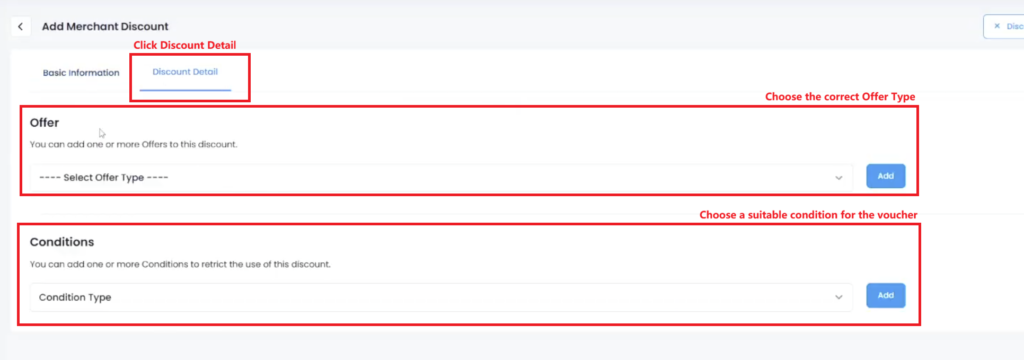
Discount Detail: ○ Choose Offer Type (e.g., “Whole Bill Discount (Amount)”). ○ Amount: Enter the value (e.g., 20).
Click Save.
Example:
Step 3: Customer Redemption (Testing)
Open your Customer Portal (Pixalink).
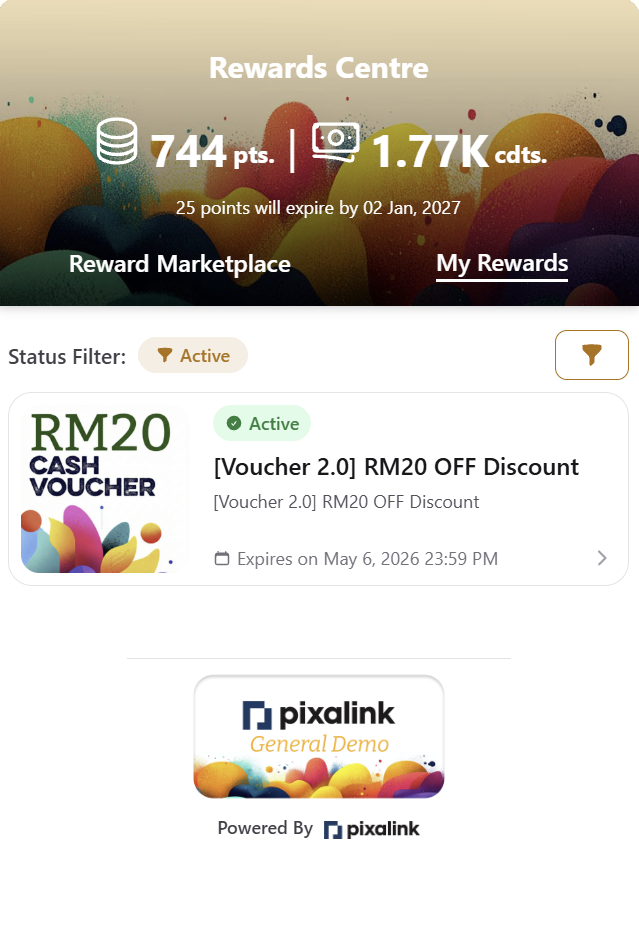
Go to Rewards and click Redeem Now on your new voucher.
Go to your Eats365 Ordering Page.
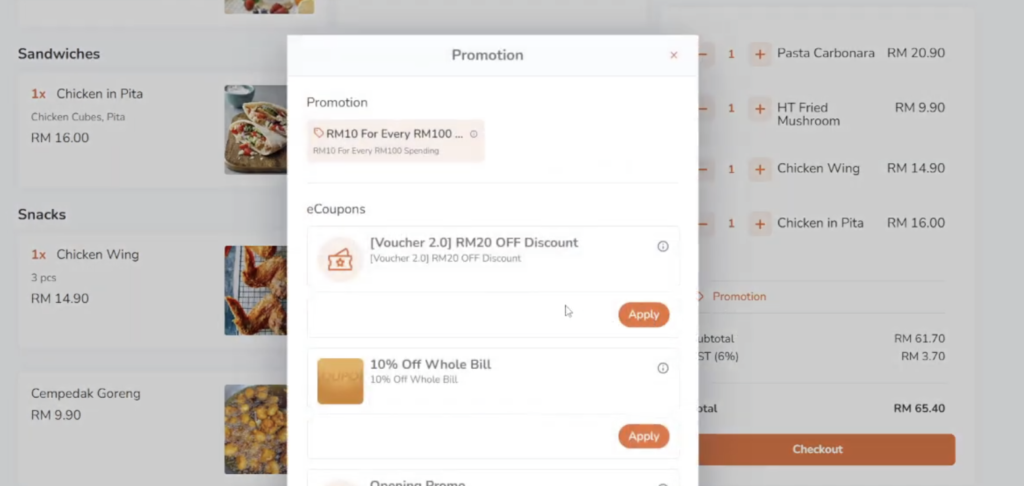
Add items to the cart and proceed to Checkout.
Under Promotions, the voucher should appear automatically. Click Apply.
Place the order to confirm the discount is deducted correctly.